For developers
Triaging bugs, keeping the board tidy, and getting builds into DevHub.
Triage and archiving are open to Team Members by default (Admin → Privileges). Adding builds needs the Developer privilege, which an admin switches on per person under Admin → Members.
Triaging bugs
Open Bugs; the Triage tab lists the reports waiting for a decision. Open one and read it, then use the Triage card. DevHub lists Possible duplicates first.
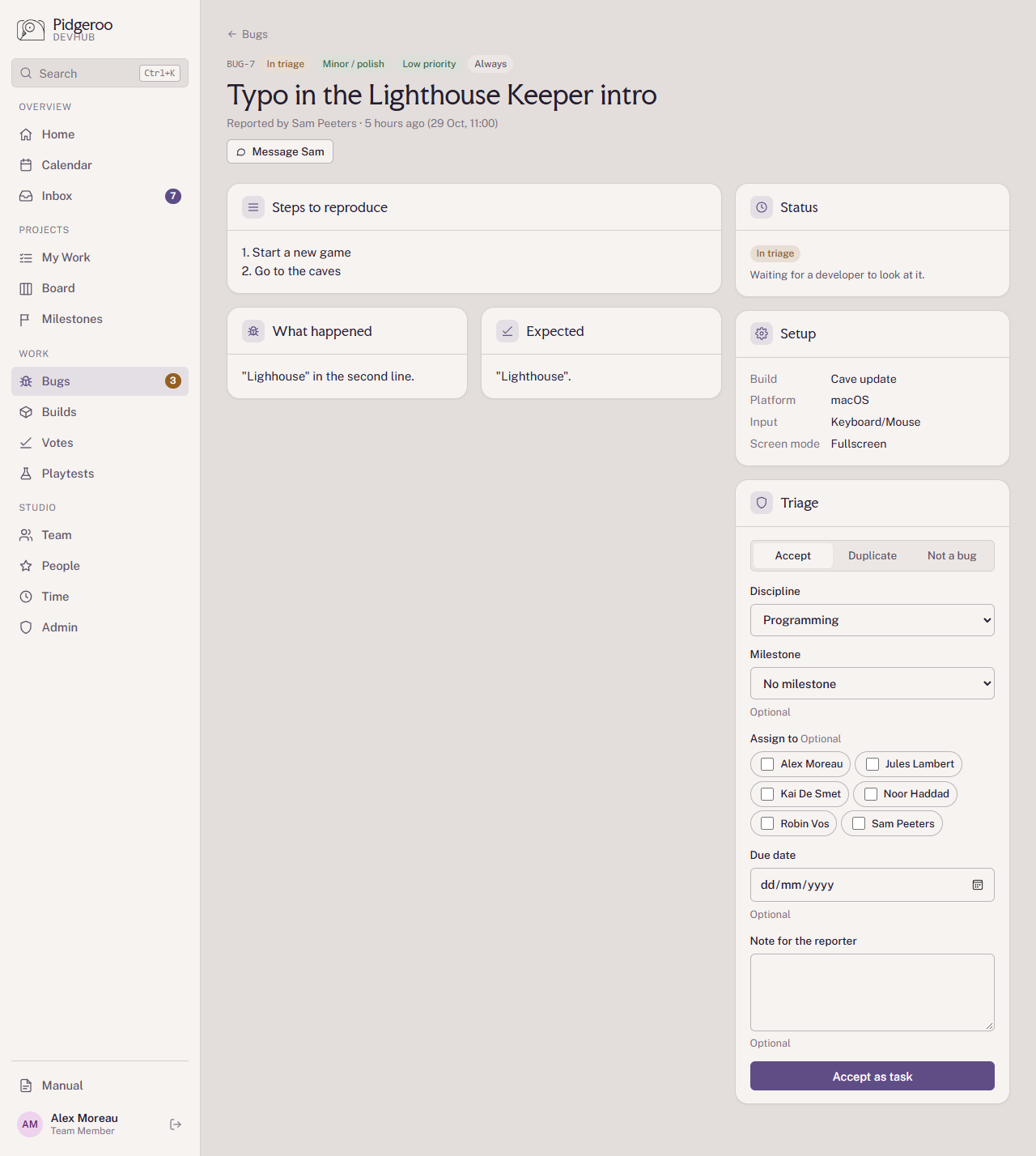
Choose one:
- Accept as task: it's a real bug. Optionally set the discipline, milestone, who to assign and a due date. DevHub creates a task called "BUG-n: title" with the full report as its description, and the reporter can follow its progress.
-
Mark duplicate: enter the original (for example
BUG-12). The reporter is pointed to it. - Close as not a bug: the game behaves as intended.
Add a Note for the reporter to explain the decision, especially for duplicates and "not a bug". If the report is unclear, use Message to ask the reporter before deciding. A closed report can be reopened with Move back to triage.
- Triage often, so reports don't pile up and testers see a response.
- Check the duplicates list before accepting.
- Try the steps yourself when you can.
- Judge the urgency yourself: the reporter's severity and priority are their estimate. Set the task's milestone and due date to match.
Archiving done tasks
To keep the Done column short, click Archive N at the top of the Done column on the board. It archives every done task matching the milestone filter: all of them, one milestone's, or (with No milestone) the ones without a milestone. Archived tasks still count towards their milestone. See Archived and abandoned.
Adding a build by hand
- Upload the build files (Proton Drive, Steam, …) and copy their links.
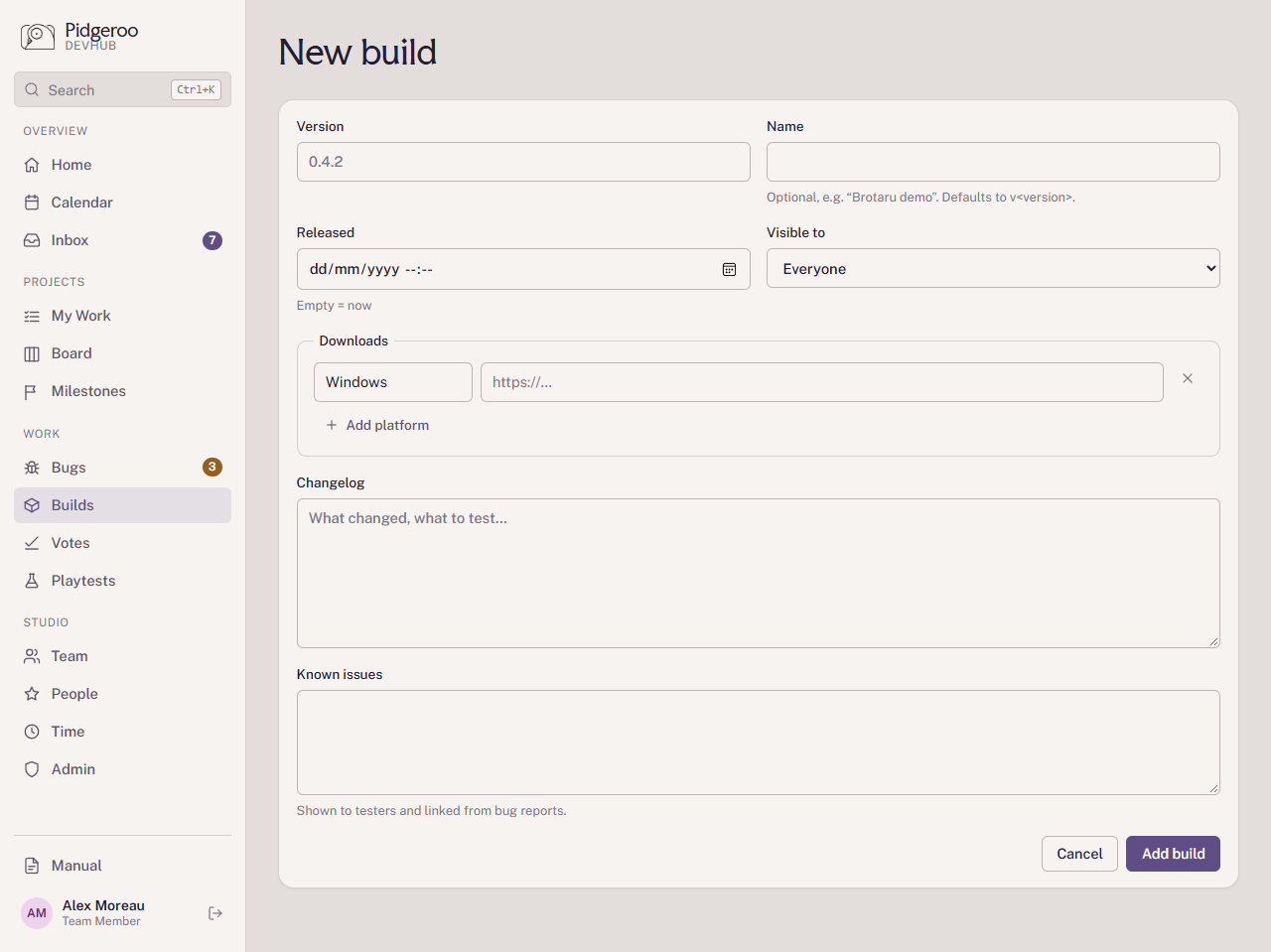
- On Builds, click New build.
- Fill in the version (and a name if it has one).
- Under downloads, add a row per platform with its link; Add platform adds more.
- Write the changelog and the known issues. Testers see the known issues when they report a bug for this build.
- Choose Visible to: Everyone (testers included), Externals and the team, or Team only. Then Create.
New builds are posted to the studio's Discord builds channel if it's connected.
Adding builds from CI
The build pipeline can register each build automatically, so nobody has to copy links by hand.
-
Ask an admin for an API token with the
Register builds (CI) permission (Admin → Integrations → API tokens). The token
starts with
dh_and is shown once. - Store it as a secret in your CI, for example
DEVHUB_TOKEN. - After uploading the files, send the build to DevHub:
curl -X POST https://dev.pidgeroo.com/api/builds \
  -H "Authorization: Bearer $DEVHUB_TOKEN" \
  -H "Content-Type: application/json" \
  -d '{
    "version": "0.4.3",
    "name": "Cave update, part 2",
    "notes": "- New: the lift room\n- Fixed: camera jitter on slopes",
    "knownIssues": "The map screen is still a placeholder.",
    "downloads": [
      { "platform": "Windows", "url": "https://…/0.4.3/windows.zip" },
      { "platform": "Steam Deck", "url": "https://…/0.4.3/steam-deck.zip" }
    ]
}'| Field | |
|---|---|
version |
Required. |
name, notes, knownIssues |
Optional. notes is the changelog. Both are plain text; line breaks are kept. |
downloads |
A list of platform + url. |
minRole |
Who sees it: playtester (everyone, the default), external
or employee (team only).
|
releasedAt |
Optional date (ISO 8601); defaults to now. |
DevHub answers 201 when the build is added. A 401 means the token
is wrong, revoked, or lacks the permission; 422 comes with a message about
what's missing in the data. Builds added this way are marked
via CI.
A token with the List builds permission can also read the builds with
GET /api/builds.